How to use a Toggl Track timer in Obsidian on mobile
The free Toggl Track phone app already starts and stops your timer on a phone, with a widget and offline tracking. Obsidian has no Toggl feature of its own, and the free Toggl Track plugin is desktop only, as of October 2026. Mobile Timer for Toggl Track is listed for mobile in the directory, and it is tested on desktop only.
Updated · 4 ways compared · 21 sources
Background
The free plugin for this job is Toggl Track by mcndt, with the id obsidian-toggl-integration. The directory shows 32k downloads, version 0.11.0, a last update 3 years ago and the platform Desktop only. Its README says it relies on a Toggl client library, and that a later version might use mobile friendly APIs.
A GitHub issue from 19 February 2022 asks for mobile support. It is still open, with 4 thumbs-up reactions and 12 comments, so the demand on record is small. On 15 January 2023 the maintainer wrote that mobile was not planned in the near future without financial support. A second request, for iOS, was closed as not planned in July 2022.
4 ways to do it
The Toggl Track app on your phone
Toggl makes its own app for iPhone, iPad and Android, and the App Store lists it as free. Its store pages name a widget that starts and stops tracking from the Home Screen, Siri on iPhone, and offline tracking that syncs later.
If you only need to track time on a phone, this app does the whole job and you need no plugin. The App Store page says a timer started in a browser can be stopped later on the phone.
limits
You leave Obsidian to use it, and the timer does not show in your notes.
Toggl Track by mcndt shows the current timer in the status bar and a summary of your day in the side panel. Commands create, start and stop a timer, and code blocks draw time reports in a note. By its README it covers this whole job on desktop at no cost, reports included.
The directory marks it Desktop only. Its manifest sets isDesktopOnly to true, and the latest release, 0.11.0, is from 23 July 2023.
limits
The directory does not list it for phones or tablets. The request for mobile support has been open since February 2022.
A local time tracker that the directory lists for mobile
If you don't need Toggl, a local tracker keeps the times in the note. Super Simple Time Tracker stores each tracker as a code block with JSON data. The directory lists it for desktop and mobile, with 43k downloads and the MIT license.
Timekeep stores its data in a similar way and exports a Markdown table, CSV, JSON or PDF. The directory lists it for desktop and mobile, with 15k downloads.
limits
Neither README mentions Toggl, so these times stay in your notes and do not reach your Toggl account.
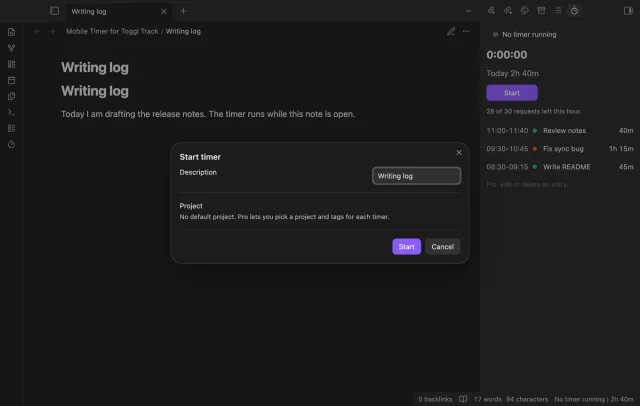
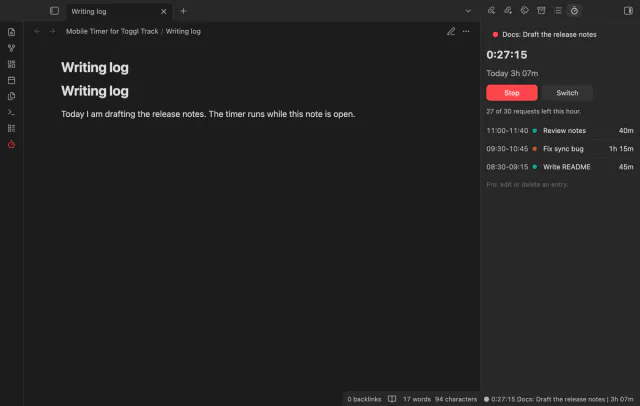
Mobile Timer for Toggl Track starts, stops and switches the Toggl timer from a note, and offers the note name as the description. A panel shows the running timer, today's total and today's finished entries. It calls Toggl with the request function of Obsidian and uses no Node module.
Start, stop, switch, the panel and one default project are free. Project and tag pickers, report blocks, edits and the offline queue need Pro. Toggl and Toggl Track are trademarks of their owner, and Toggl does not make or endorse this plugin.
limits
It is listed for mobile in the directory and tested on desktop only, with a stand-in for Toggl. It sends your API token and your time entries to Toggl, and without Pro each action needs a connection.
Install Mobile Timer for Toggl Track from Community plugins and enable it. It needs Obsidian 1.13.4 or later.
Copy your API token from your Toggl Track profile settings.
In the plugin settings, select the token field, create a secret and paste the token. Then select Check connection.
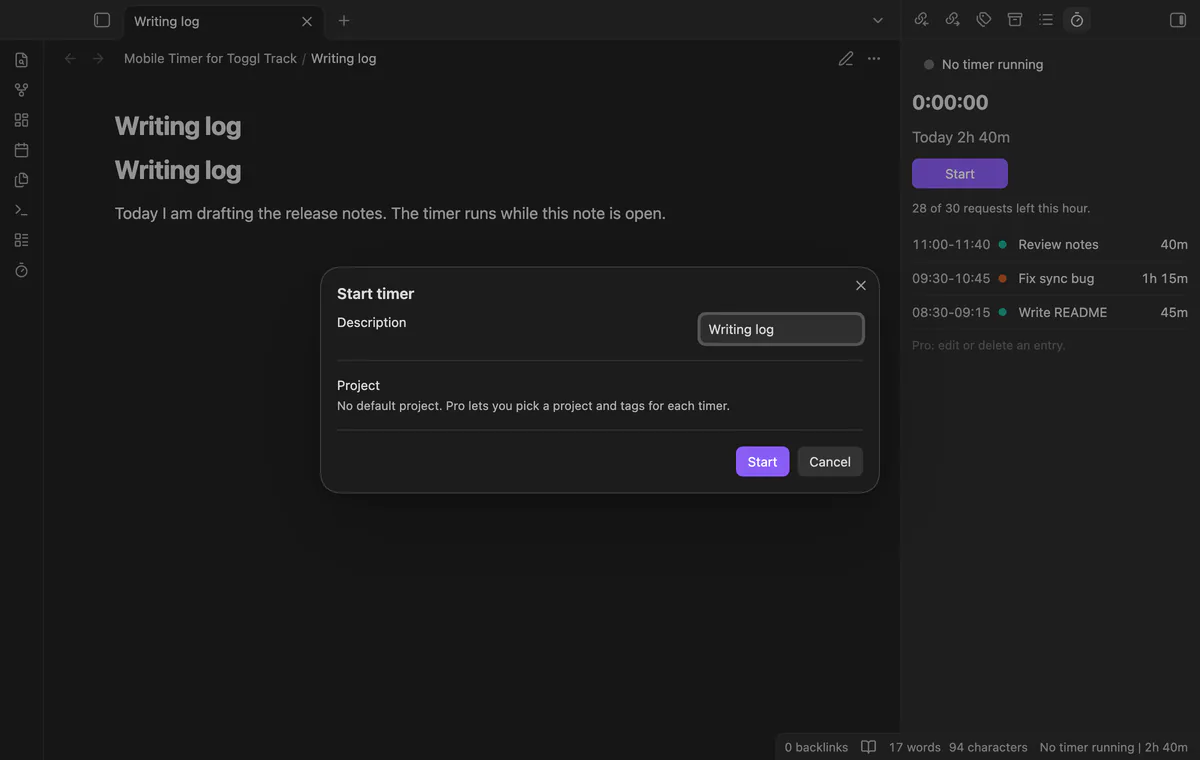
Open a note and run Start timer. The window offers the note name as the description.
Run Open timer panel to see the clock, today's total and today's finished entries.
Run Stop timer, or select Stop in the panel.
Common questions
Is there a free Toggl plugin for Obsidian on iPhone or Android?
The directory lists four plugins that name Toggl, as of October 2026. Toggl Track and Toggl Import are free and desktop only. Codeless Heatmap Calendar is free and listed for mobile, and its README names a heatmap of Toggl data and no timer control. The fourth is Mobile Timer for Toggl Track, whose timer is free and whose mobile use is untested.
Does a Toggl timer keep running when Obsidian is closed?
Yes, because the timer runs on Toggl and not in Obsidian. Mobile Timer for Toggl Track counts its clock from the start time that Toggl holds. It does not run in the background and sends no reminders.
How many Toggl API requests can a free account make?
The Toggl API docs give the Free plan 30 requests an hour for each user in an organization. Requests about your own user data have a separate limit of 30 an hour on every plan. Starter gets 240 and Premium gets 600 for workspace requests. At the limit, Toggl answers HTTP 402.
Is it safe to give an Obsidian plugin my Toggl API token?
The Toggl docs show that an API token signs requests in place of your email and password. So read what a plugin does with it. Mobile Timer for Toggl Track keeps it in Obsidian secret storage and sends it only to api.track.toggl.com. The Obsidian docs say that any plugin can reference a secret by its name.
The Tasks plugin writes the done date as plain text, and its docs say a date can't be a link, as of October 2026. A Tasks or Dataview query in the daily note lists what you finished, with no link and no plugin to buy. For a real link, use the free Checkbox Time Tracker in notes you mark, or Task Date Links with Tasks done dates.
Bases can't list the checklist tasks inside your notes on its own, as of October 2026. A base row is a file, and an Obsidian developer wrote in 2025 that Bases doesn't read file contents. You can make each task its own note, or add a community view for Bases that reads the task lines.