Bases Task Rows
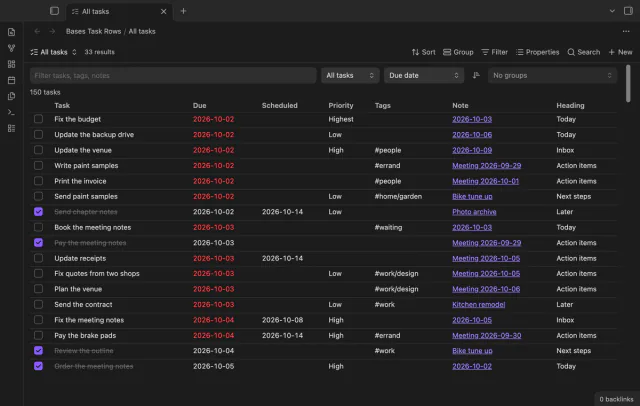
Every checklist task in the notes a base selects, one row each, with a done box you can tick.
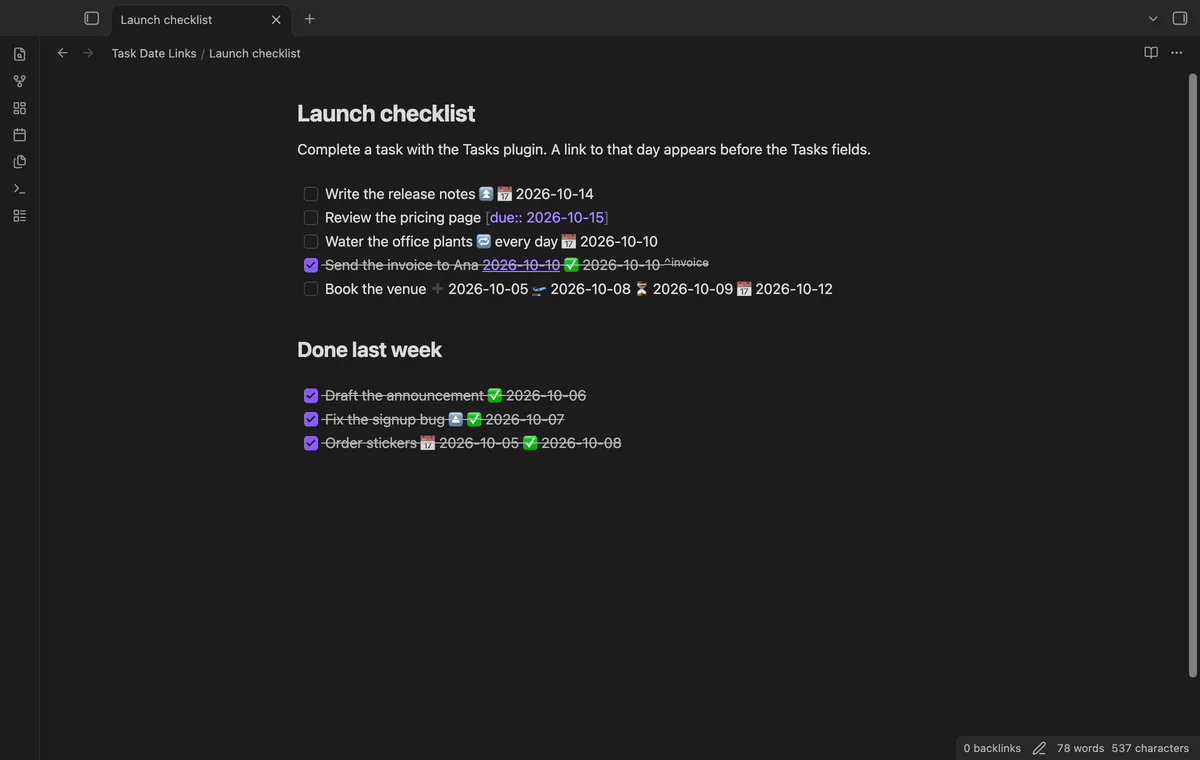
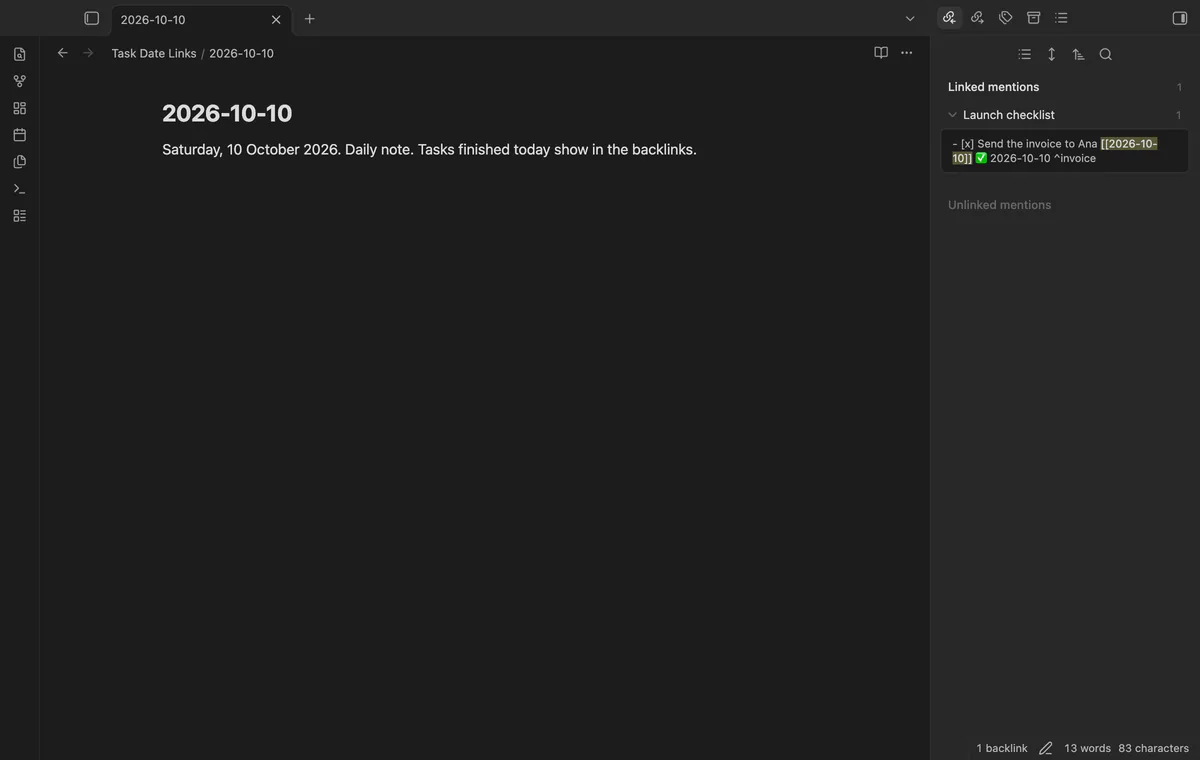
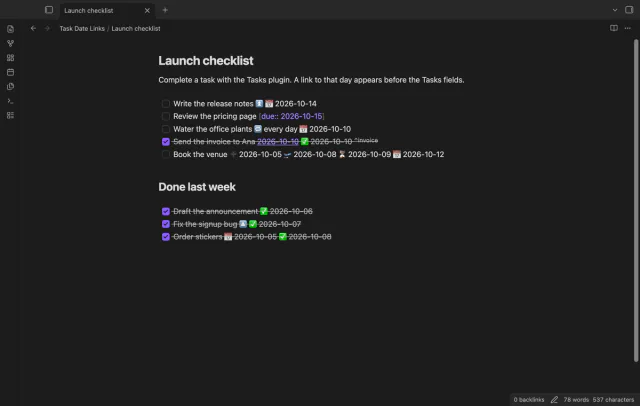

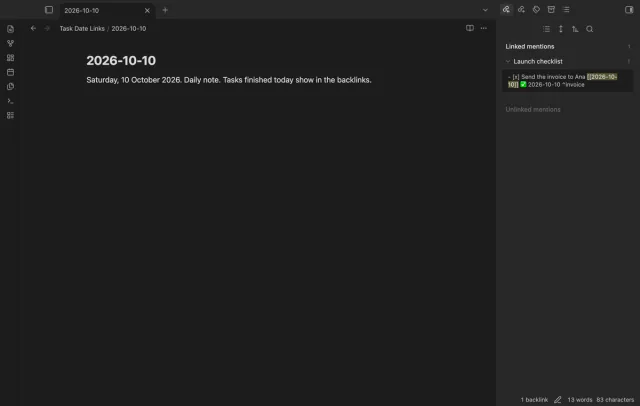
Complete a task and it links to that day, so the daily note lists it in its backlinks.
MIT · no telemetry · core features free
The end-to-end tests run in the desktop app, with the Tasks plugin turned on. The directory lists the plugin for desktop and mobile, and the repository has no mobile test.
Directory facts fetched from community.obsidian.md/users/theluckystrike.
You complete tasks with the Tasks plugin and want the daily note to show, in its backlinks, what you finished that day.
The Tasks plugin writes the done date as plain text, a check mark and a date. Text is not a link, so the daily note for that day shows nothing. Task Date Links adds a real link to that day, before the Tasks fields.
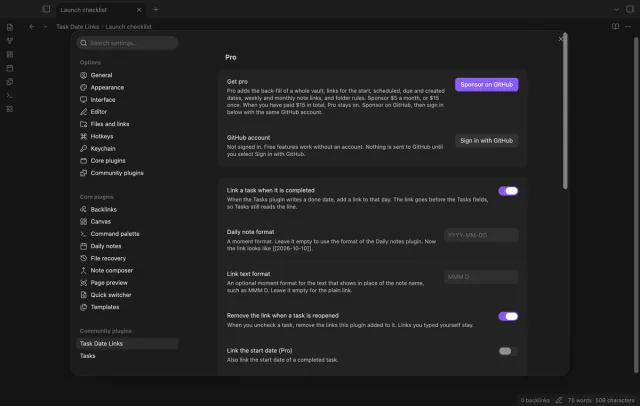
The link on completion, the back-fill of one note or a selection, and the undo are free. Pro adds the back-fill of the whole vault, links for more dates, week and month links, and folder rules.
 Play demo
When the Tasks plugin writes a done date, Task Date Links adds a link to that day, such as [[2026-10-10]]. The link goes before the Tasks fields, because Tasks reads its fields from the end of the line. So Tasks still reads the done date, the due date, the priority, the recurrence rule and the block id.
Open the daily note and look at the Backlinks pane. A task that links to that day is there, with its whole line. The graph view shows the same links.
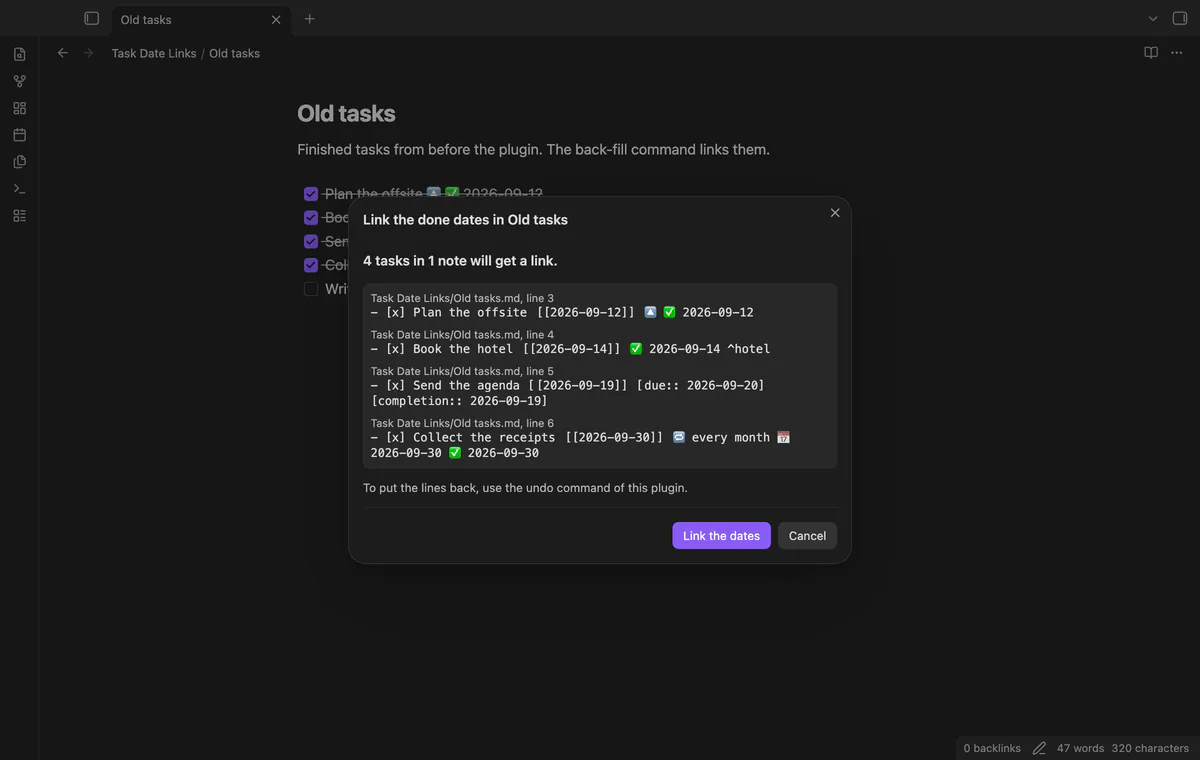
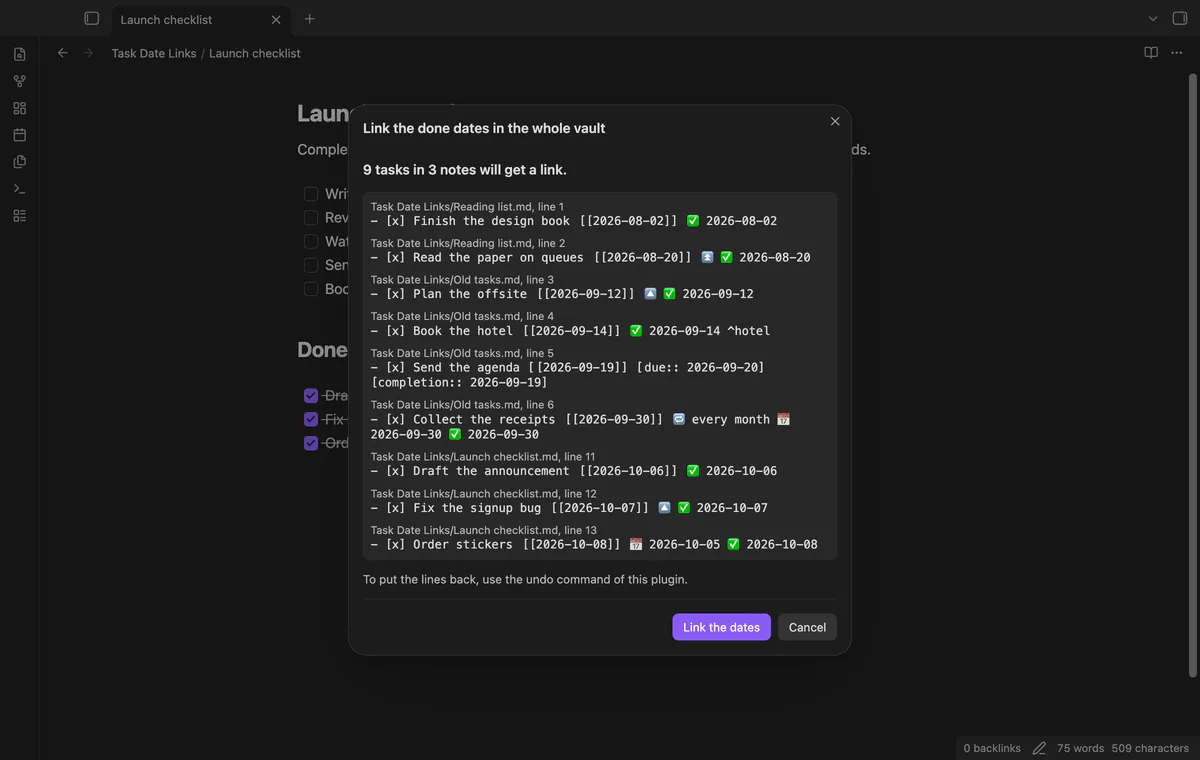
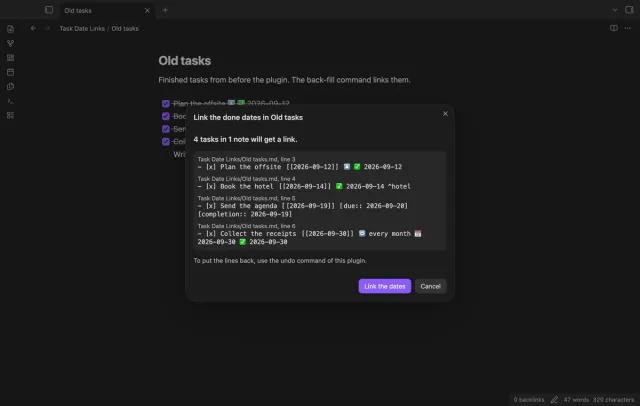
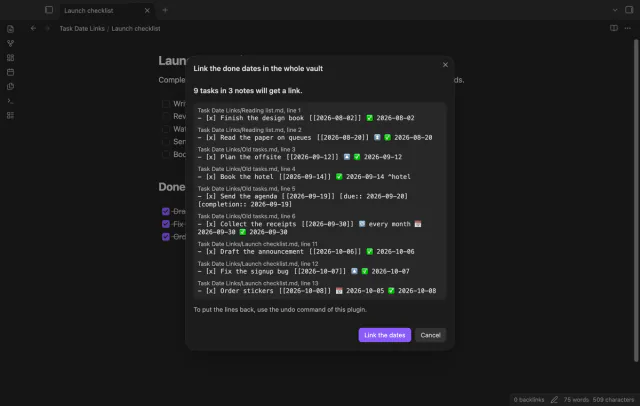
For old done dates, run Link the done dates in the current note, or select some lines and run the selection command. A preview lists up to 40 lines that would change, and nothing is written until you select Link the dates. Undo the last back-fill puts the lines back, except a line that you edited since.
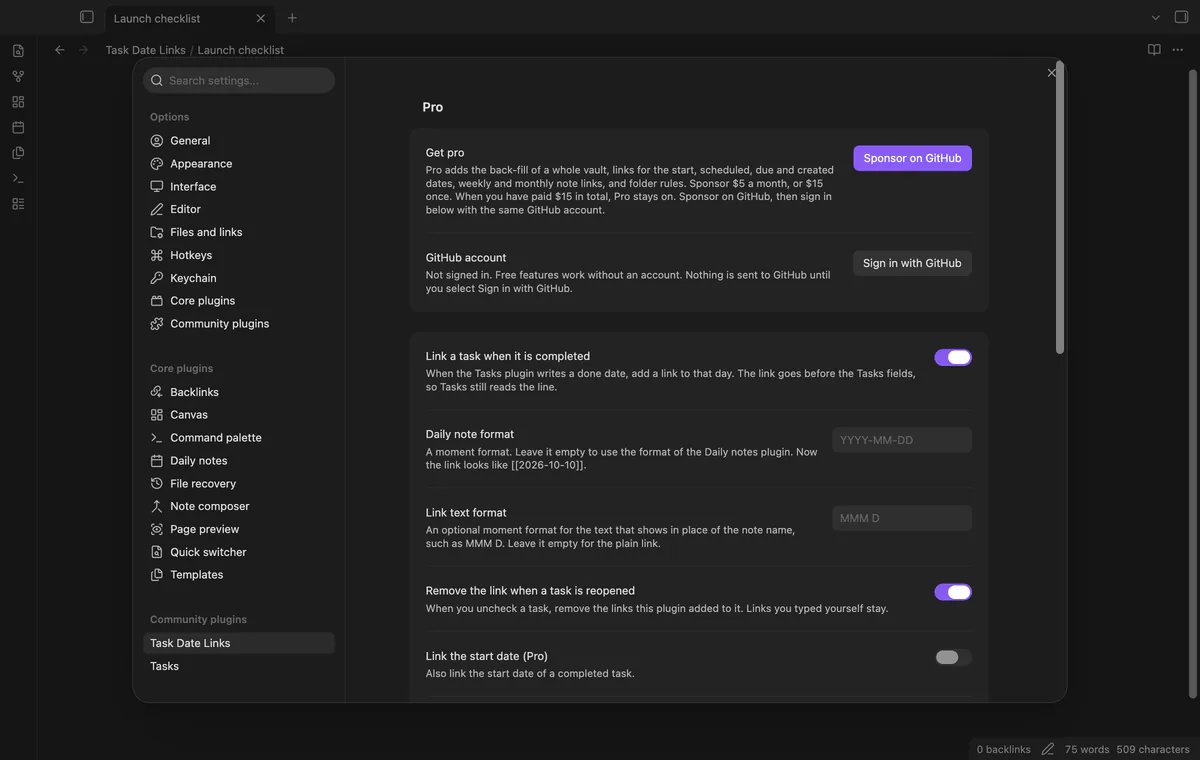
The plugin reads the date format of the core Daily notes plugin, or you set another moment format such as DD-MM-YYYY. A format that would break a link, for example one with # or |, falls back to YYYY-MM-DD. A link text format such as MMM D gives [[2026-10-10|Oct 10]].
With a recurring task, Tasks makes a new open copy and finishes the old one, and only the finished copy gets the link. Uncheck a task in the same session and the plugin removes the links that it added. A link that you typed yourself stays.
The free version has no time limit and no task limit, and it links the done date only.
Pro costs $5 a month or $15 one time through GitHub Sponsors. One sponsorship turns on Pro in all 18 plugins.
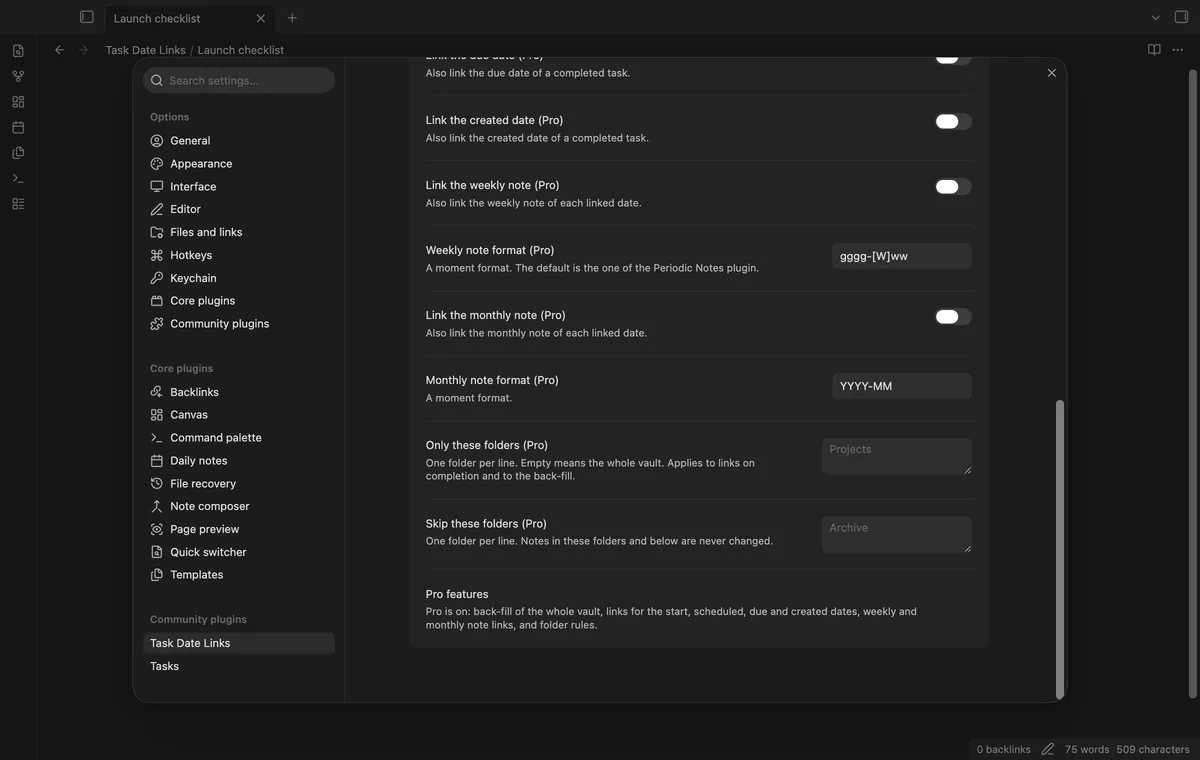
Turn on the start, scheduled, due or created date, and a completed task gets a link for each one. Turn on the weekly or monthly note, and each linked date also links its week or month. The default formats give links such as [[2026-W41]] and [[2026-10]].
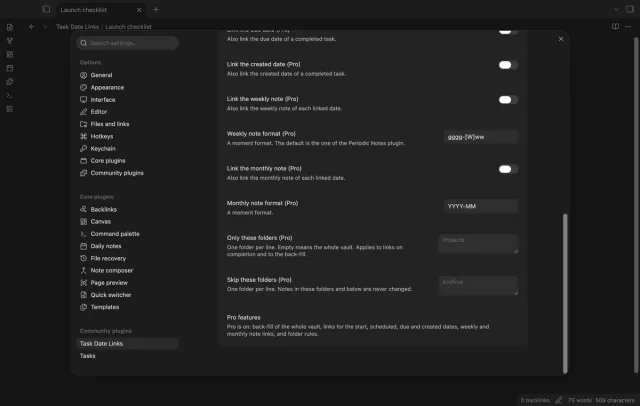
Link the done dates in the whole vault runs the back-fill over the notes that hold a checked task, with the same preview. One undo puts back all the notes.
List the folders to use, or the folders to skip, with one folder for each line. The rules apply to links on completion and to the back-fill. A note in a skipped folder, or in a folder below it, is never changed.
needs
steps
Install Task Date Links from Community plugins and enable it.
Complete a task as you do now, for example with the Tasks command Toggle task done.
Wait for Obsidian to save the note with the done date. The link to that day then appears before the Tasks fields.
Open the daily note of that day and look at the Backlinks pane.
For older done dates, run Link the done dates in the current note and check the preview.
If the app can't find a new plugin yet, try again later. Obsidian says a plugin that passes the review shows in the app within 24 hours.
The Tasks request to make the date format configurable, links included, has 43 reactions. Its maintainer closed it as not planned in June 2026, after a first discussion in April 2021 with 81 upvotes.
The Tasks plugin writes the done date as plain text, and plain text is not a link. Task Date Links adds a real link to that day when the done date appears. The link goes before the Tasks fields, so Tasks still reads the line.
No. Task Date Links reads the done date in the note, and Tasks is the usual way to get it. A done date that you type by hand also works. A checked task with no done date gets no link.
On its own, the plugin links only a done date of today or yesterday, so use the back-fill for older dates. The done date must also sit with the Tasks fields at the end of the line. A line with other text after the done date, such as a tag, gets no link.
Queries on dates, status and priority work as before, because the fields do not change. The description of the task now holds the link text. A query such as description includes 2026 sees it.
The links stay in your notes as normal links. They are real text in the note, so Obsidian reads them with or without the plugin.
Task Date Links makes no network requests until you select Sign in with GitHub in the settings. After sign in, it asks GitHub about your sponsorship at most once every 7 days, or when you select Refresh. It sends no note content, file names or other vault data, and it has no telemetry.
Task Date Links 1.0.0, MIT license
MIT · no telemetry · core features free
Every checklist task in the notes a base selects, one row each, with a done box you can tick.
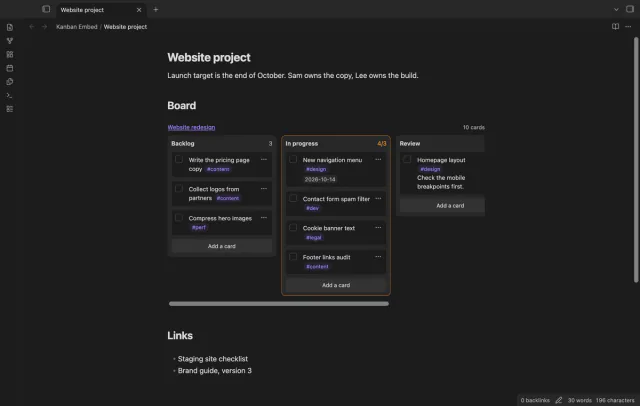
Put a Kanban board in a project page or a daily note and check off cards right there.
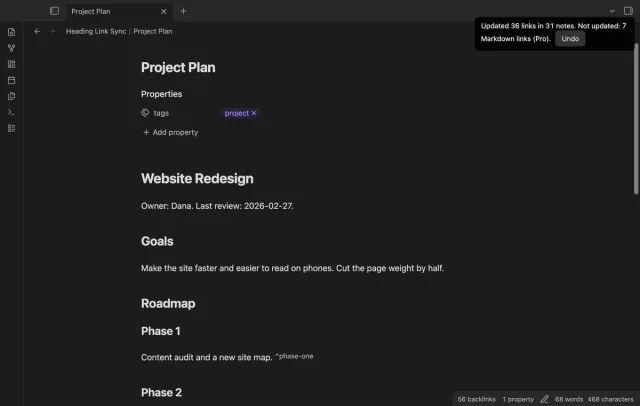
Retype a heading and the wikilinks and embeds to it in your other notes follow, with no rename dialog.